One Studio for Every Visual You Post
Generate images, infographics, and carousels from a single prompt. Style references, your logo, dozens of templates, and a full AI editor - all in one place.
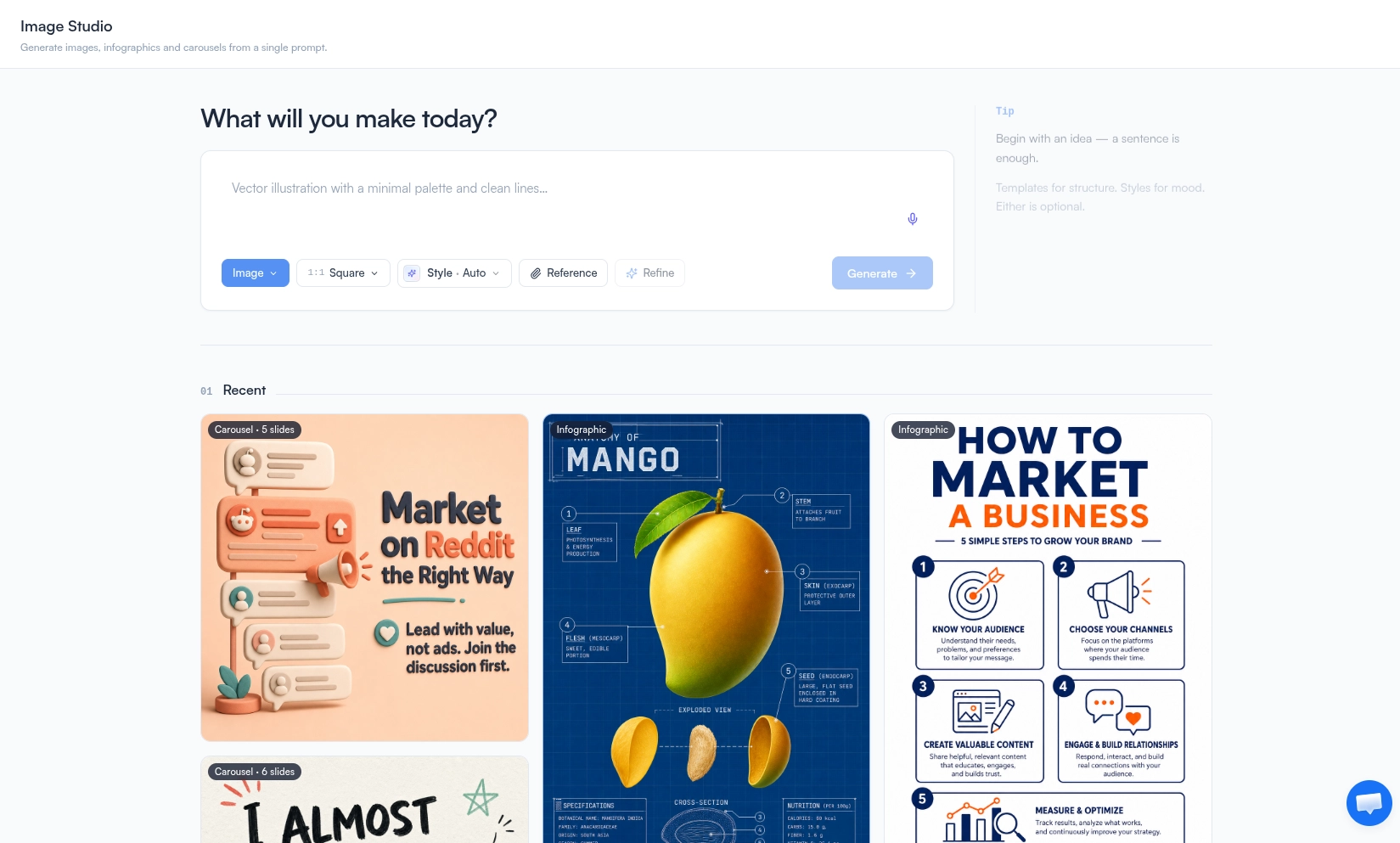
All Three Visual Formats. One Prompt. One Place.
Image Studio replaces the back-and-forth between separate carousel makers, infographic builders, and image generators. Pick your format, choose a style, drop in references, and generate - then edit with precision tools or natural language. Every output saves to your Recent gallery so you can reopen, remix, or download anything later. Reach for Slide Decks when you want slides whose text you edit directly, or schedule generated content through the Content Calendar.
Everything in the Studio
One Prompt, Three Formats
Generate normal images, infographics, or full carousels from a single prompt - pick the format and the studio handles the rest.
Predefined Styles
Editorial, isometric 3D, blueprint, sketch, risograph, neo-brutalist, comic book, and more - applied with one click.
Style & Subject References
Upload a style reference for mood and color. Upload a subject reference and the studio renders that exact subject faithfully into the output.
Logo Upload for Branded Visuals
Drop your logo into the prompt and every generated image, infographic, or carousel comes back on-brand.
Ready-Made Templates
Polished starting points across images, infographics, and carousels - skip the blank canvas and customize from there.
AI Prompt Refinement
Click Refine and the AI rewrites your prompt using your selected style, references, and format - no prompt-engineering required.
Multiple Size Options
1:1 square, portrait, landscape, and LinkedIn-optimized presets so visuals fit the feed without cropping.
Generation History
Every image, infographic, and carousel you generate is saved automatically. Reopen, remix, or download anything from the Recent gallery.
AI Image Editor
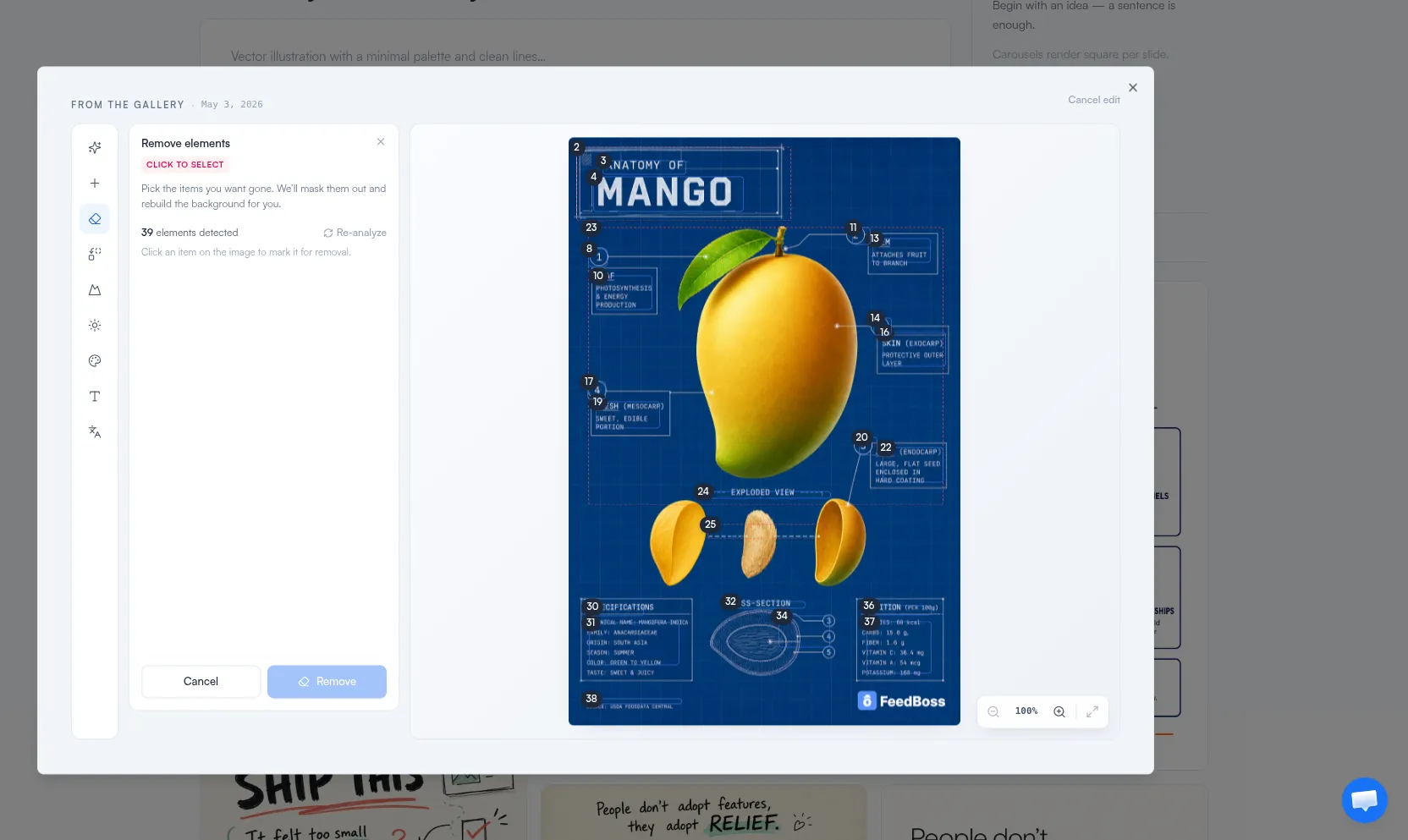
Edit any output with prompts or precision tools - remove elements with a click, swap backgrounds, change weather, replace text, or apply a new style.
Templates for Every Format
Skip the blank canvas. Image Studio ships with curated templates for images, infographics, and carousels - pick a starting point and customize from there.
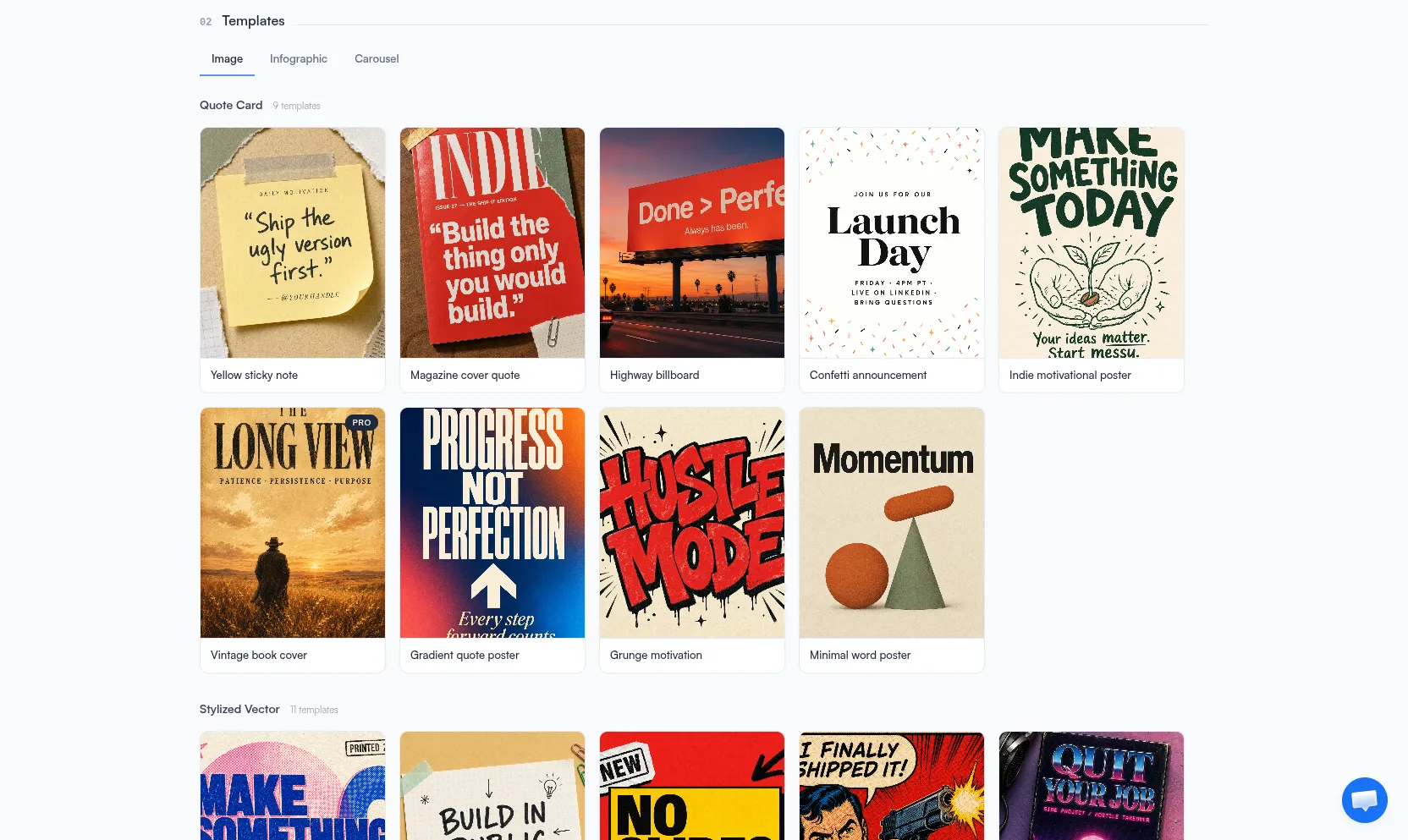
Image Templates
Quote cards, stylized vectors, and editorial layouts for single-image posts.
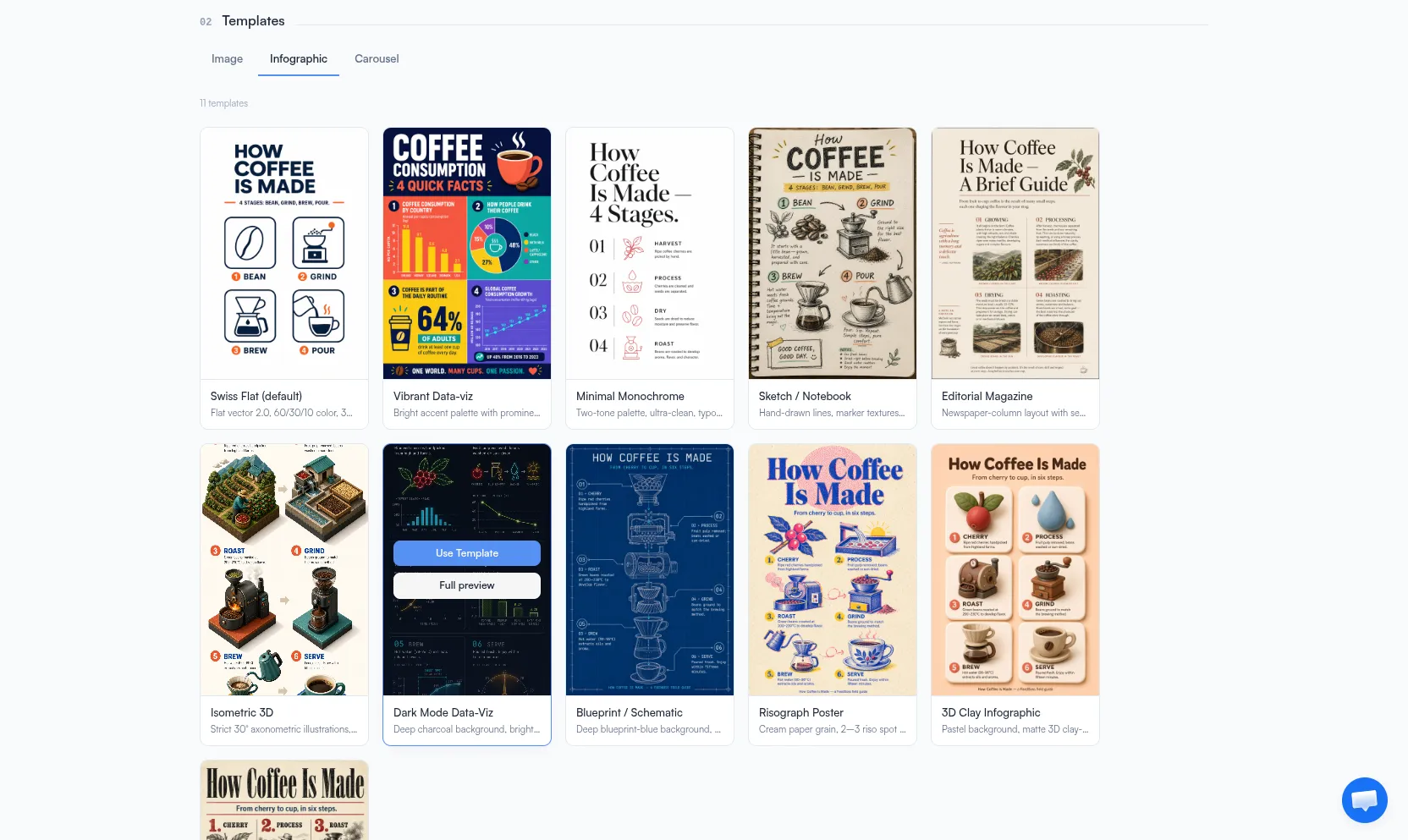
Infographic Templates
Data-viz, sketch-style, blueprint, and editorial templates for step-by-step or stat-heavy content.
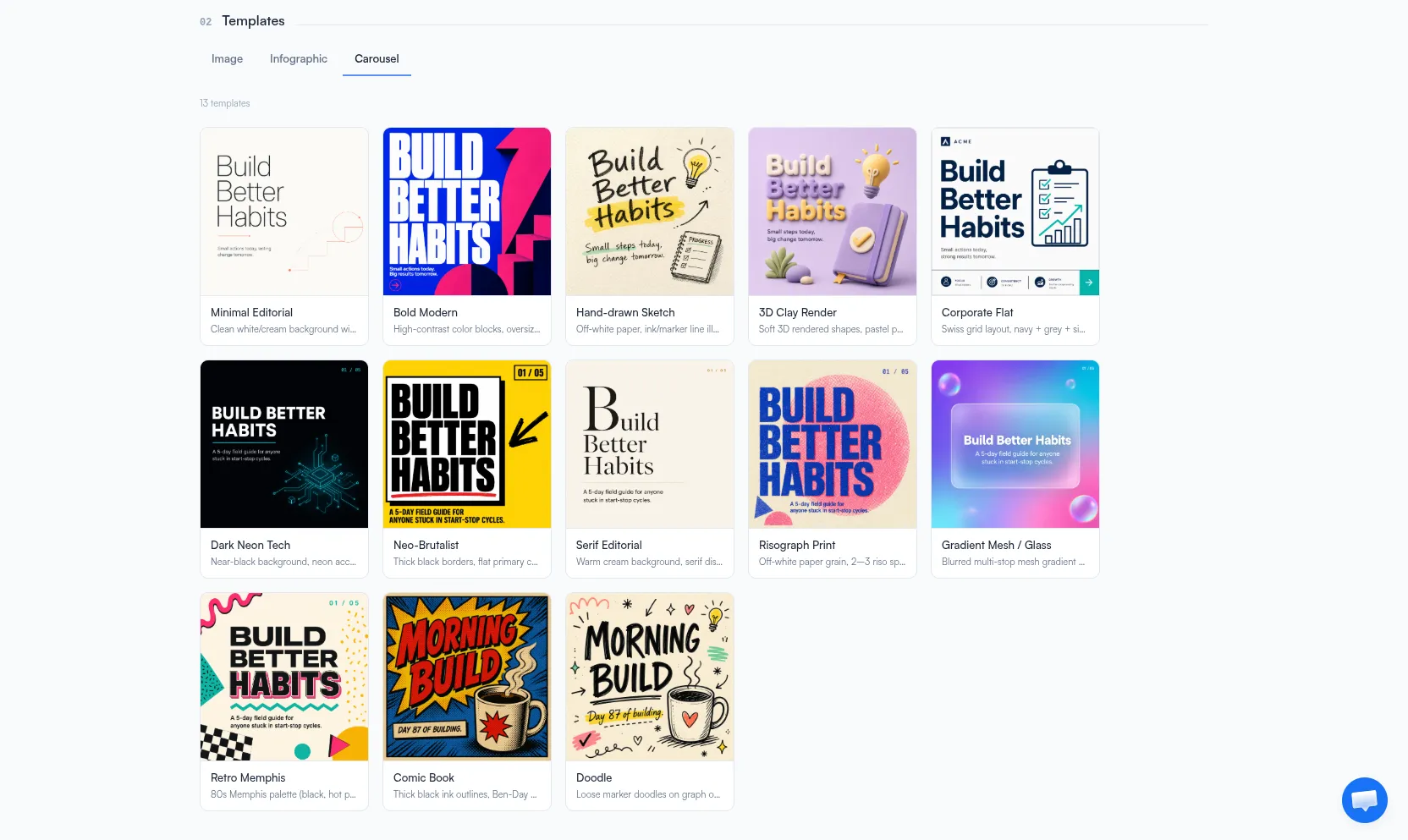
Carousel Templates
Multi-slide stories - minimal editorial, bold modern, retro Memphis, comic book, and more.
Edit Any Output Without Regenerating
Click any element to remove it. Describe a change in plain English. Swap the background, lighting, or weather. Translate image text to another language. The editor handles prompt-based and pixel-precise edits in the same canvas.
Prompt-Based Editing
Describe the change in plain English and the AI applies it - "make the background a sunset," "swap the chart to a pie chart," "change his shirt to navy."
One-Click Element Removal
Click an object in the image and hit Remove. No prompt, no masking - the editor detects elements automatically and rebuilds the background behind them.
Add or Replace Elements
Drop in a new object, swap a face, or replace a logo without regenerating the whole image.
Background, Lighting & Weather
Change the time of day, location, lighting setup, or weather without touching the subject.
Style Transfer
Apply any of the studio styles to an existing image with one click.
Precise Text Editing & Translation
Edit text inside the image directly - fix typos, change words, or translate the image text to another language while preserving the layout.
How It Works
Choose Your Format
Pick image, infographic, or carousel - or start from a ready-made template.
Set Style & References
Choose a style, upload a style or subject reference, and drop in your logo if you want branded visuals.
Refine the Prompt (Optional)
Hit Refine and the AI rewrites your prompt using your selected context so you don’t have to engineer it yourself.
Generate, Edit, Export
Generate, edit with precision tools or prompts, then download - the result is automatically saved to your Recent gallery.
Who It's For
Built for LinkedIn creators at every level
Solo Creators & Personal Brands
Ship a polished image, infographic, or carousel for every post without hiring a designer or jumping between tools. One prompt, one place.
Marketing & Growth Teams
Maintain brand consistency across hundreds of visuals using your logo, color reference, and saved style. Edit any output in seconds when feedback comes in.
Agencies Managing Multiple Clients
Spin up branded visuals per client using their style and subject references. The history view keeps every client’s outputs organized and reusable.
Frequently Asked Questions
What is the difference between an image, an infographic, and a carousel here?
How do style and subject references differ?
Do I have to write a perfect prompt?
Can I edit an image after it is generated?
Where do my generations go?
Can I drag elements around the canvas myself?
Related Features
Explore more tools in the FeedBoss platform
AI Post Generator
Generate publish-ready LinkedIn posts in single or batch mode with AI that learns your voice.
Learn more →Slide Decks
Generate a deck of editable text slides from one prompt - a library of designer templates, per-slide AI refine, present mode, and export to PowerPoint or PDF.
Learn more →Knowledge Base
Turn voice memos, PDFs, and notes into organised, reusable pages - then ground every post, carousel, and chat in what you actually know.
Learn more →Content Calendar
Plan and schedule posts weeks in advance, or auto-generate a full month of content in seconds.
Learn more →Ready to own your LinkedIn?
Pick your voice
Set your tone, topics, and style. FeedBoss learns how you write so every post sounds like you.
Generate & customize
Get AI-drafted posts, carousels, and hooks. Edit or publish as-is.
Post & grow
Schedule content, track what works, and watch your audience grow week over week.